


AT&T Secure Family® parent app
4.59.86K Reviews
App Specs
- Version
- 12.1.2
- Updated On
- License
- Free
- Downloads
- 10,000,000+
- Developer
- AT&T Services, Inc.
- Categories
- Lifestyle
- Platform
- Android
Screenshots



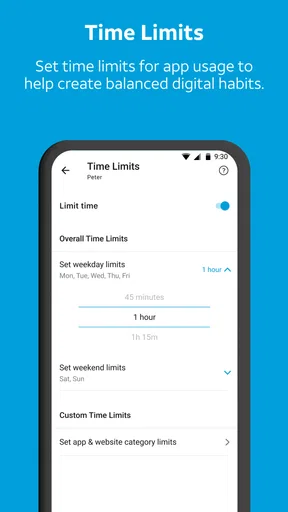
 Analysis by AppCompare
Keeping track of a child’s location and digital habits is one of those jobs that sounds simple until you are trying to do it during a busy school day. I tested AT&T Secure Family® with that practical problem in mind: can it make family location checks and screen-time boundaries feel manageable, or does it add another layer of work? My impression is that it is most useful when a household wants these controls gathered in one place rather than spread across separate phone settings and family apps.
This is a free lifestyle app from AT&T Services, Inc., aimed at families rather than general-purpose device management. Its focus is clear: location tracking, parental controls, screen-time limits, and app blocking. The app has been available since April 26, 2010, and its current version is 12.1.2. That long presence gives it a more established feel than a brand-new family utility, although the experience still depends heavily on how well each family configures it and how compatible the phones are.
What using the parent app feels like day to day
The first thing I noticed is that this is not an app I would open for entertainment or casual browsing. It is a control panel. I would expect a parent to check it briefly before school, during a commute, or after a child has arrived somewhere, then close it again. That matters for speed expectations: the app does not need to behave like a game, but it does need to present important family information without making the parent hunt through several unrelated menus.
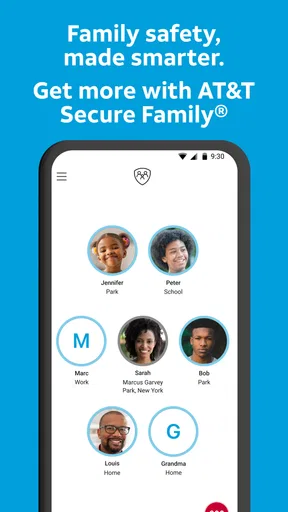
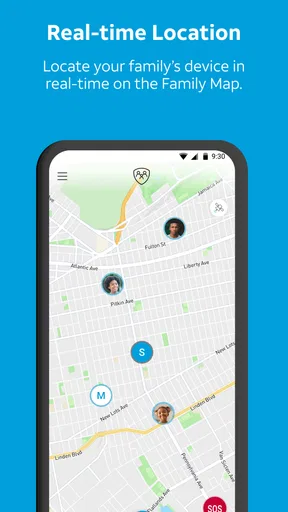
The strongest reason to choose it is the combination of family location tracking and parental controls. Instead of relying only on a phone’s built-in location sharing, a parent can use one family-oriented place to think about whereabouts, screen time, and app access. That combined approach is more useful than it may sound. Location answers “where is the device?” while screen-time rules address “when should the device be used?” Those are different problems, and handling both together can make a household routine easier to remember.
I would not describe it as a replacement for a conversation with a child. Location tools can reassure a parent, but they do not explain why a phone is somewhere unexpected, and an app block cannot teach healthy digital habits by itself. The best results come when the family agrees on what the controls are for, when they apply, and what happens when a rule needs an exception.
Speed expectations and the right way to judge them
For a utility like this, perceived speed is mostly about clarity and responsiveness. A parent wants to open the app, understand the current family situation, and adjust a rule without feeling lost. I found that the simple nature of the main tasks works in its favor. Checking a location or reviewing a control is a much narrower job than managing a full smart-home system or a complete device-security suite.
There is an important distinction, though. A fast interface does not guarantee that every location-related result will feel immediate. The app depends on the connected phones and their available location information, so a parent should not treat a displayed position as a perfect live view of a person’s movements. In practice, I would use it for agreed check-ins and broad reassurance, not for second-by-second supervision.
Worth Reading Before You Choose

Flipboard Shows What News Apps Must Do Beyond the Feed

Switching to Android Auto Means Rethinking Your Driving Routine

Google Calendar Makes a Crowded Week Easier to Manage

Ludo King Makes the Most of the Minutes Between Plans

Baby Panda World Brings Quick Play to Modern Phones, but Its Game Library Feels Busy

ESPN’s Live Game View Makes Following Close Games Easier
My practical tip is to decide in advance which checks actually matter. If a child is walking home, the useful question may be whether they have reached the expected area, not whether the map changes every moment. That reduces unnecessary refreshing and keeps the app from becoming a source of anxiety. It also makes the service feel faster because you are using it for decisions it can realistically support.
What happens during heavy-use moments
The demanding moments are not necessarily caused by opening the app many times. They are more likely to happen when several family members have phones connected, a parent is reviewing location information while also changing screen-time boundaries, or a child is moving between places and networks. Those situations put more importance on orderly information and predictable recovery than on flashy animation.
I would prepare for occasional friction whenever a control is changed at a busy time. A parent might be trying to block a distracting app before homework, set a screen-time limit, and check whether a child has left school. Doing all of that in a hurry is where unclear menus or delayed updates become noticeable. My advice is to configure regular rules before the stressful moment arrives. Treat the app as a planning tool, not an emergency remote control.
A useful household workflow is to create expectations around recurring periods such as schoolwork, bedtime, and travel days. The benefit is not simply fewer taps. It gives children a predictable framework and gives parents fewer decisions to make when they are tired. The trade-off is that a rigid rule can become inconvenient when plans change, so I would review the setup after holidays, new activities, or a change in school schedule.
Another non-obvious consideration is that app blocking and screen-time limits serve different purposes. Blocking is a sharper intervention for a particular application, while a time limit is broader and can encourage the child to manage the available time. If a child needs one game unavailable during homework, blocking may be appropriate. If the concern is late-night phone use across several apps, a wider schedule may be less frustrating than repeatedly targeting individual apps.
Reliability, recovery, and family trust
Reliability here is not only whether the app opens. It is whether the family can understand what a control is meant to do and recover calmly when a phone is offline, unavailable, or behaving differently from expectation. I prefer to think of this app as one layer of family coordination rather than the sole safety mechanism. A parent should still have ordinary contact methods and a clear plan for situations in which the app cannot provide an immediate update.
When something looks wrong, the first step should be simple: check whether the child’s phone is powered on, connected, and being used as expected, then reopen the parent app rather than repeatedly changing settings. Repeated edits can make it harder to tell whether the original rule was wrong or whether the update simply has not appeared yet. Keeping a written note of the intended screen-time routine can also help a parent restore the setup without guessing.
This recovery mindset is especially important with location information. A map can create a false sense of precision, particularly when a parent is already worried. I would use the app to support a conversation or a planned check-in, not to draw conclusions from one unexpected position. That is a limitation of the use case, not a reason to dismiss the app; responsible interpretation is part of using any family tracking tool well.
The app’s established history and broad adoption are reassuring context. It carries a 4.5 average from around 40 thousand ratings, with more than 10 million installs. Those figures suggest that it is familiar to a substantial number of families, but they do not remove the need to test the setup with your own household. A family’s phones, routines, and expectations will determine whether the experience feels dependable.
Device constraints and compatibility decisions
The minimum operating-system requirement is iOS 9 or later, which makes the app accessible to older Apple devices than many modern utilities. That can be valuable in a family where a child uses a hand-me-down phone. At the same time, older hardware can change the experience: menus may feel less fluid, battery condition may be weaker, and the phone may be less comfortable for newer system behavior.
I would check every phone involved before building family rules around the service. The parent’s phone is only one part of the setup; the child’s device also needs to participate properly for location and controls to be useful. If one family member uses an older phone, test the most important routine first: open the parent app, check the expected family view, apply a modest restriction, and confirm that everyone understands what should happen.
Resource demands are another sensible concern. I would not assume that a location-focused family app is cost-free in terms of battery or background activity, but I also would not claim a specific drain without measuring it on the actual devices. The practical approach is to watch battery behavior after installation and during the first few days, especially on an older phone. If the child’s device already struggles to last through school, that is a reason to evaluate carefully rather than activate every possible control immediately.
There is also a privacy and independence trade-off that families should discuss openly. Younger children may benefit from clear supervision, while teenagers may see continuous location awareness as intrusive. The app can support agreed boundaries, but it cannot decide what is fair for your family. I would explain which information is being checked, why it matters, and when the rules will be revisited. That conversation can prevent the tool from becoming a source of secrecy or conflict.
Where it fits beside the usual alternatives
The usual alternative is to combine built-in phone location sharing with operating-system screen-time controls. That route can be perfectly adequate, particularly for a technically confident parent who wants fewer third-party layers. It may also be preferable when a household already has a well-established setup and does not need a separate family dashboard.
AT&T Secure Family® makes more sense when the parent values a dedicated family workflow. Its appeal is not that it magically solves every parenting challenge; it is that location, screen-time boundaries, and app blocking are presented as parts of the same family-management task. That can reduce the mental overhead of remembering which setting lives where.
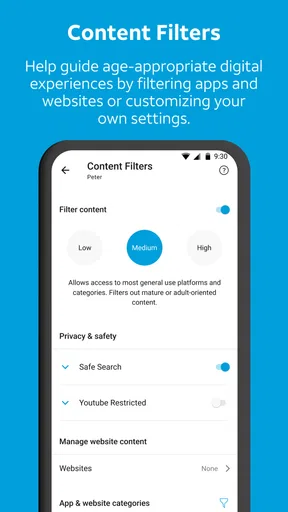
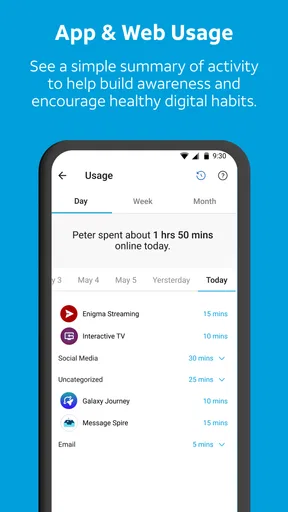
On the other hand, families wanting a broad digital-safety platform with extensive reporting, content filtering, or detailed activity analysis may find this focus too narrow. I would also skip it if the household is uncomfortable with location tracking in principle, because the central value of the app depends on that feature being acceptable to everyone involved. For a single adult managing one phone, built-in tools are likely to be simpler.
Costs, setup choices, and who should use it
The app itself is free, and it is rated for Everyone. In-app purchases are listed at $7.99 per item, so I would pay attention to any optional upgrade or purchase screen during setup instead of assuming every capability follows the free download. A parent should decide what the household actually needs before spending money on extras. The free entry point makes it reasonable to evaluate the basic workflow first.
I see it being a good fit for parents of children who carry smartphones, especially when the family wants a single place for location awareness and limits around phone use. It can also help households with changing schedules, where a parent needs to think about both arrival and digital routines. The app is less suitable for someone searching for a standalone emergency-response service, a detailed employee-monitoring system, or a complete internet-filtering package.
One concrete scenario shows the balance well. Imagine a child leaving school and then needing to start homework at home. A parent can use the family view to check the expected arrival area, then rely on the agreed screen-time setup during homework. If the child needs a school-related app, the parent should test that it remains available before the first assignment. This small preparation step avoids the common mistake of applying a broad restriction that also interferes with something useful.
Another practical tip is to review rules after a child’s responsibilities change. A limit that works for a younger child may become unreasonable when the phone is needed for transport, study, or communication. Rather than treating the first setup as permanent, I would schedule occasional family reviews. That turns the app from a punishment mechanism into a tool that grows with the household.
My performance verdict
AT&T Secure Family® feels best when used for short, purposeful checks and preplanned family rules. Its speed expectations are reasonable for a focused lifestyle utility, but location information should be interpreted as practical guidance rather than a perfect live feed. During heavier family use, preparation matters more than rapid tapping. Set recurring boundaries ahead of time, test them on every participating phone, and keep a backup communication plan.
Its reliability is strongest when parents understand the limits of the setup and avoid making urgent decisions from one unexplained update. Device age, operating-system compatibility, battery condition, and family agreement all affect the experience. The minimum requirement of iOS 9 or later broadens its reach, but older phones deserve a careful trial before they become central to the household’s routine.
Overall, I would recommend it to a family that wants a dedicated combination of location awareness, screen-time management, and app blocking without assembling those tasks from unrelated tools. I would not recommend it automatically to every parent: families satisfied with built-in controls, households opposed to location tracking, or users seeking deep content filtering may be better served elsewhere. For the right family, though, the biggest strength is the way it turns several everyday supervision tasks into one repeatable routine.
My final advice is to start modestly. Install the free app, involve the family in the rules, test the most important location and screen-time workflow, and watch how the devices behave over several ordinary days. If the controls make expectations clearer without creating constant checking, it is doing its job. If the household begins relying on it for every uncertainty, the better solution may be a simpler routine and more direct communication alongside the technology.
Pros
- Location sharing helps parents check a child’s whereabouts quickly.
- Custom place alerts can notify you when a child arrives or leaves.
- The family map makes managing multiple children more convenient.
- Screen-time controls encourage healthier phone-use routines.
- The app can help organize family contacts and communication rules.
Cons
- Some features may require an eligible AT&T wireless plan.
- Location accuracy depends on GPS
- mobile coverage
- and battery life.
- Children may need the companion app installed on their devices.
- Background location tracking can noticeably increase battery usage.
- Privacy concerns may arise if monitoring settings are not discussed openly.
FAQs for AT&T Secure Family® parent app
What is the AT&T Secure Family® parent app used for?
AT&T Secure Family® is designed to help parents manage and supervise a child’s smartphone use. From the parent app, you can view the child’s device location, set screen-time schedules, pause internet access, apply content filters, and review certain activity information. Its features are intended to support family safety and healthy digital habits, rather than replace communication or direct parental supervision.
Does AT&T Secure Family® work with every phone and mobile carrier?
Compatibility depends on the devices, operating systems, and wireless service used by your family. The app is primarily associated with eligible AT&T wireless accounts and generally requires a companion installation or supported setup on the child’s device. Before downloading, check the current requirements in the Google Play Store or Apple App Store, because supported features may differ between Android and iPhone, and some controls may require AT&T service.
Can parents track a child’s location with AT&T Secure Family®?
Yes, location features can allow parents to view the approximate or current location of a child’s enrolled device, provided that the necessary permissions and services are enabled. Accuracy may vary because of GPS availability, Wi-Fi, cellular coverage, battery level, and the child’s device settings. Location tracking should be discussed openly with children, and it should not be treated as a substitute for emergency services.
Can AT&T Secure Family® block apps, websites, or internet access?
The parent app offers controls intended to limit a child’s digital activity, such as pausing internet access, creating time schedules, and filtering unsuitable websites or content. However, no parental-control tool is perfect. Results can depend on the child’s device, browser, connection type, permissions, and app version. Parents should regularly review settings and explain the rules, since technical restrictions work best alongside active guidance.
Is AT&T Secure Family® free to download, and are there additional costs?
The application may be available to download at no charge, but access to its full parental-control and family-safety features can depend on an eligible AT&T plan, subscription, or promotional terms. Pricing and included functions may change by account, region, and platform. Review the in-app information and AT&T’s current terms before subscribing, especially if the app offers a trial or automatically renewing payment option.


